SilentShot

iPhone / iPad · iOS 18.0+

Silent mode on.Silent shutter.

A camera whose shutter goes quiet whenever your iPhone is in silent mode. Photos carry no location data, and your music keeps playing while you shoot.

Scan with your iPhone

SilentShot

When it helps

What it does

  1. 01

    The shutter follows silent mode

    The shutter sounds as usual and stays quiet while your iPhone is in silent mode. You can pick the tone in Settings.

  2. 02

    No location in your photos

    SilentShot does not use Location Services, so photos carry no GPS. Taking photos never uses the microphone, so your music keeps playing.

  3. 03

    No ads

    No ads appear, even in the free version. No ad SDK is linked and no advertising identifier (IDFA) is used.

  4. 04

    Framing and quality settings

    Use a grid, a level indicator, a self-timer and the volume buttons as a shutter. You can also choose the aspect ratio and file format (HEIF or JPEG).

  5. 05

    Photos and video

    Switch to video with the button beside the shutter. Sound is recorded by default and can be turned off in Settings.

  6. 06

    One-time Premium

    Unlock unlimited shots, maximum quality, bursts of up to 10 frames, video with no time limit in up to 4K, and every filter. It is not a subscription.

In detail

Quiet whenever your iPhone is
01

Quiet whenever your iPhone is

The shutter sound plays on every shot, but it stays off while your iPhone is in silent mode. There is no separate mute switch in the app: it simply follows the setting on your device.

  • No sound in silent mode
  • Sound returns when silent mode is off
  • Pick a shutter tone in Settings (whether it plays is up to silent mode)
Pick a look before you shoot
02

Pick a look before you shoot

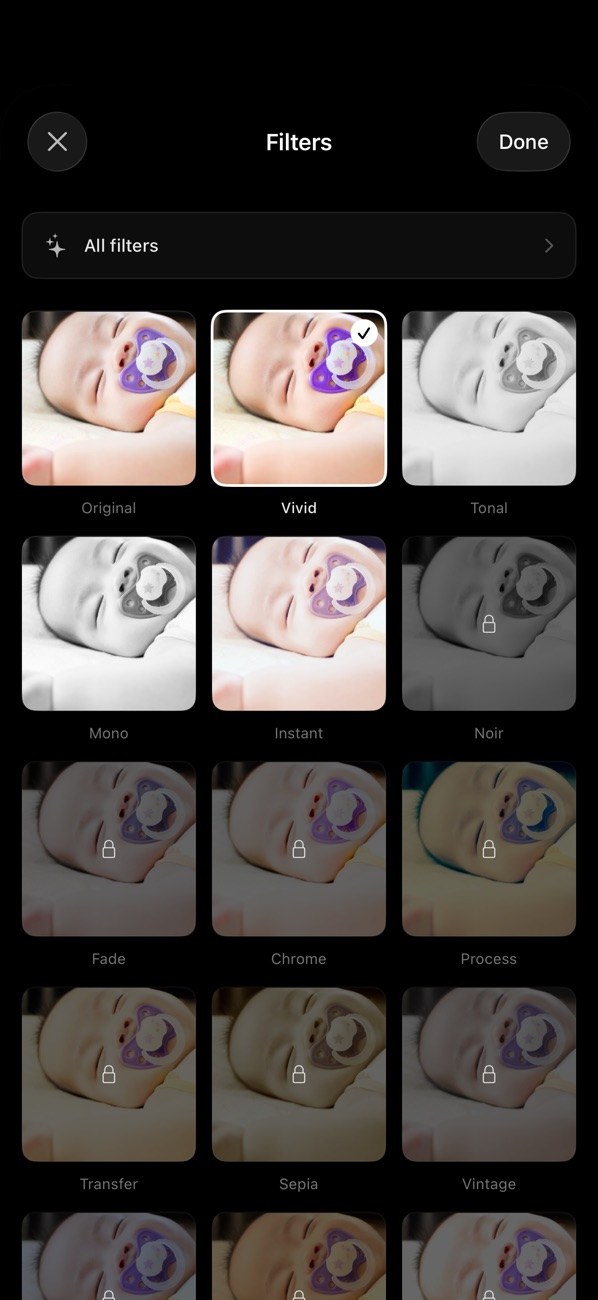
The filter screen shows a thumbnail of each look so you can compare them side by side. The first five filters are free, and Premium unlocks every filter.

  • Swipe left or right to switch
  • Filters with a lock need Premium
  • The filter name appears on the camera screen
Guides for framing
03

Guides for framing

Turn on a grid and a level indicator in Settings. The grid comes in rule of thirds, golden ratio, square and diagonal styles.

  • Choose the grid style
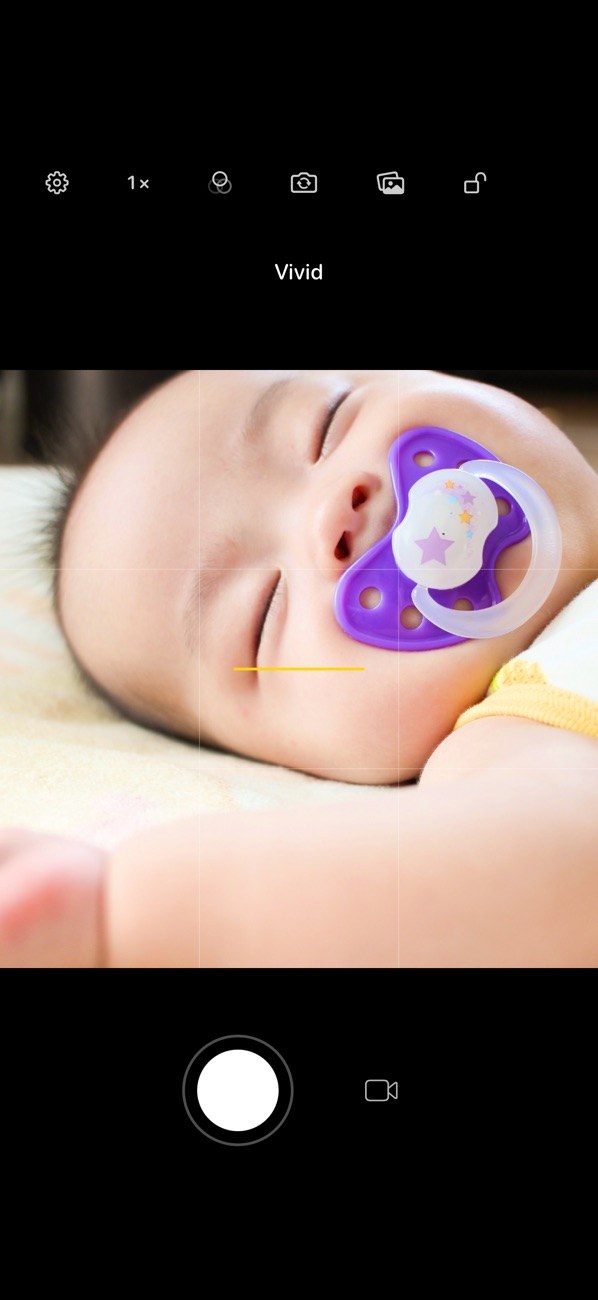
  • Level indicator (the yellow line)
  • Aspect ratio is set in Settings
Choose quality and file format
04

Choose quality and file format

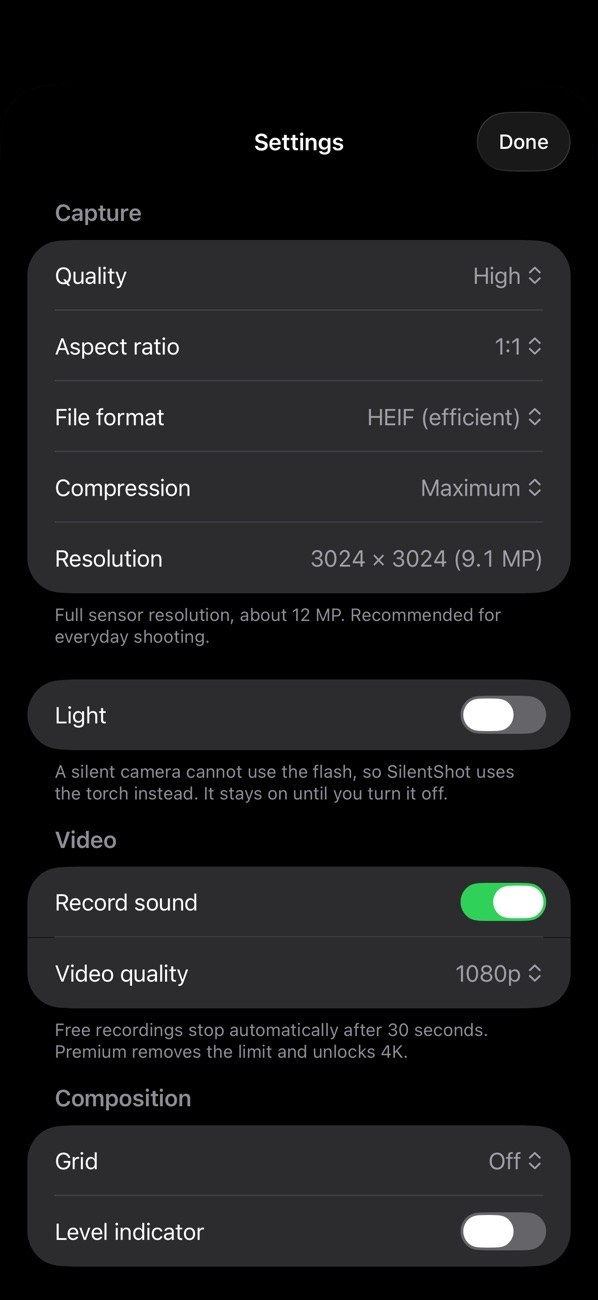
Settings lets you pick quality, aspect ratio, file format (HEIF or JPEG) and compression. The resolution you are shooting at is shown on screen.

  • Save as HEIF or JPEG
  • A light you switch on yourself, in place of the flash
  • Maximum quality is a Premium feature
Record video too
05

Record video too

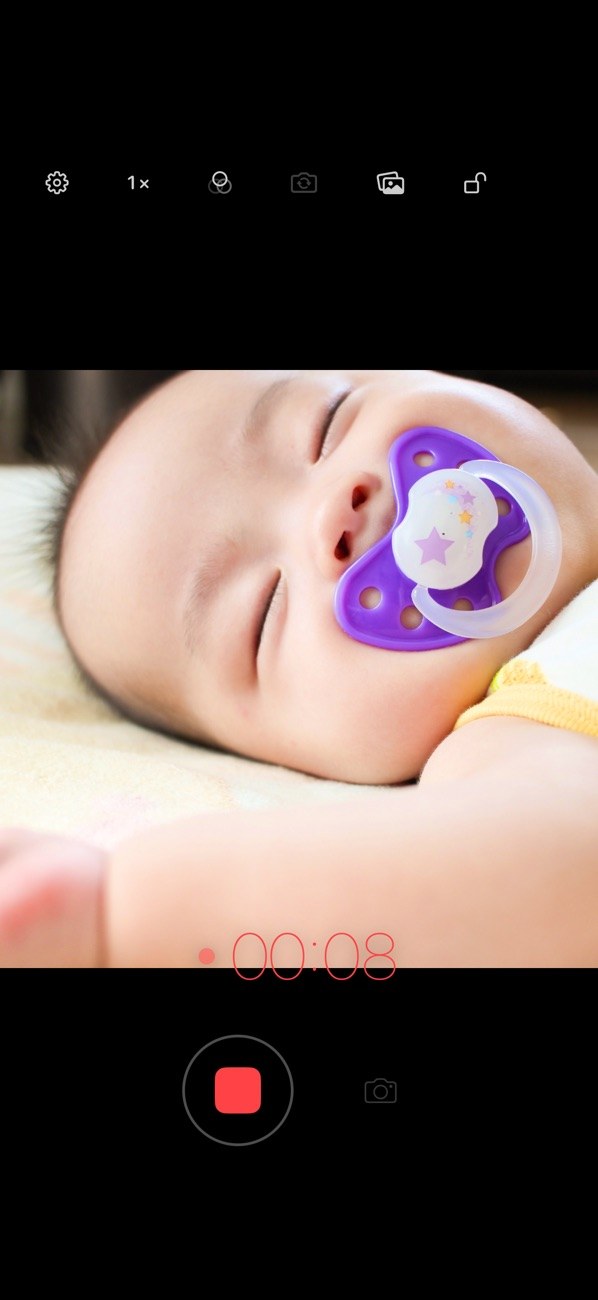
Switch to video with the button beside the shutter and a red timer shows how long you have been recording. Whether sound is recorded is a switch in Settings.

  • Free recordings stop after 30 seconds
  • Premium: no time limit, up to 4K
  • Sound is on by default and can be turned off
One-time Premium purchase
06

One-time Premium purchase

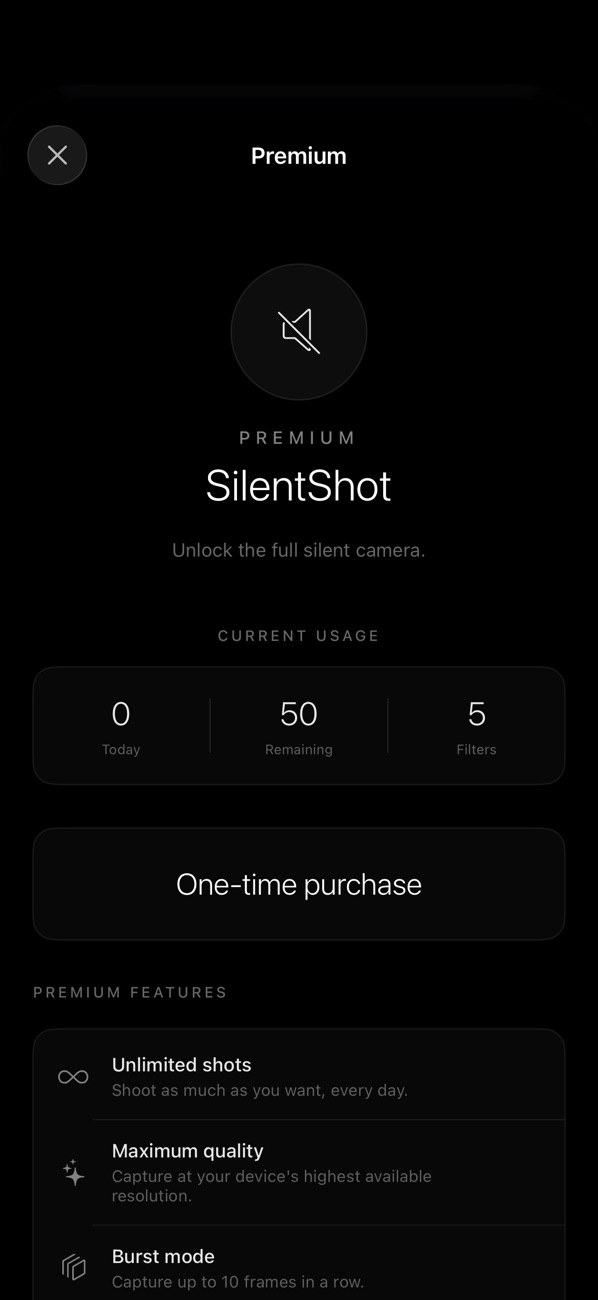
The Premium screen shows today's shots, how many are left, and how many filters you can use. It is a one-time purchase with nothing that renews automatically.

  • Unlimited shots
  • Maximum quality and burst (up to 10 frames)
  • Unlimited video, up to 4K

How it works

  1. 1
    Put your iPhone in silent mode

    Put your iPhone in silent mode

    If you want no sound, switch your iPhone itself to silent mode first. The shutter sound follows that setting.

  2. 2
    Choose a filter and compose

    Choose a filter and compose

    Open the list from the filter icon at the top, or swipe left or right on the screen. Tap to focus and pinch to zoom.

  3. 3
    Set quality and guides

    Set quality and guides

    Open Settings with the gear at the top left to choose quality, aspect ratio and file format. The grid and level indicator are switched on here too.

  4. 4
    Press the shutter

    Press the shutter

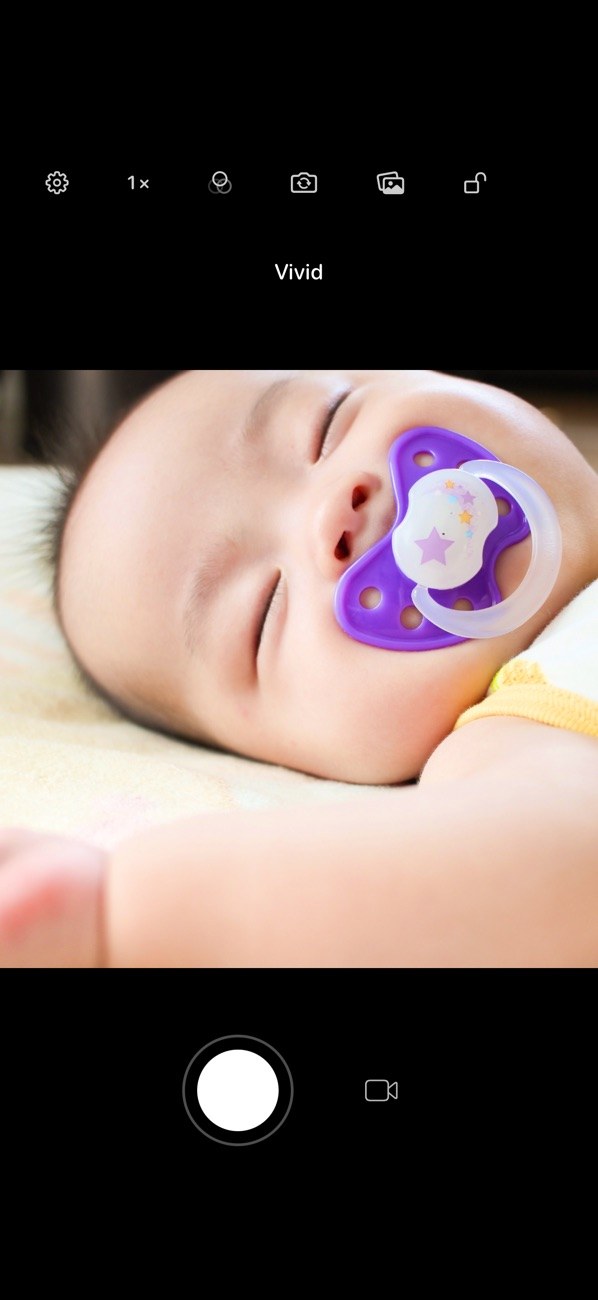
    Tap the white button to take a photo. To film instead, switch with the video icon beside the button and then start recording.

Screens

Camera screen, quiet in silent mode
Filter list
Filter list
Recording video
Recording video
Grid and level indicator
Quality and file format settings
Premium and today's usage

FAQ

Is the shutter really silent?

The shutter sound plays on every shot, but it stays quiet while your iPhone is in silent mode. When silent mode is off, you will hear it.

Can I turn the shutter sound off inside the app?

No. Settings lets you pick the tone, but whether it sounds is decided by your iPhone's silent mode.

Do my photos carry location data?

SilentShot does not use Location Services, so your photos carry no GPS.

Does taking a photo stop my music?

No. Taking photos never touches the microphone, so your music keeps playing. The microphone is used only while you are filming with sound on.

Does video record sound?

By default, yes. Turn off Record sound in Settings to film without audio.

What can I do for free?

Free use covers up to 50 shots a day, the first five filters, and video that stops automatically after 30 seconds.

What does Premium add? Is it a subscription?

Premium adds unlimited shots, maximum quality, burst (up to 10 frames), video with no time limit in up to 4K, and every filter. It is a one-time purchase, not a subscription.

Are there ads?

There are no ads in SilentShot, not even in the free version.

Take the shot without the click.

Download on the App Store
SilentShotGet